MoonLightOS

MoonTools

The applications that are specific to MoonLightOS. Each one covers a task that no existing tool handled well, and each one writes ordinary files and ordinary settings, so nothing it does is hidden from the rest of the system or hard to undo.

Everyday tools

MoonLight Capture

Screenshots and screen recording

One tool for both screenshots and screen recordings, something no Linux desktop includes as a whole. Five modes at the top: the entire screen, one window, a region you select, record the screen, record a region. Below them: where the result goes (the Pictures folder, the clipboard or both), a delay of 3, 5 or 10 seconds, whether to include the pointer, whether to record the microphone, and a quality setting from best quality to smallest file.

The screen is captured first, as a single frozen frame, and the region is selected on that frame, so what you want to capture cannot move while you select it. Window mode detects real windows, so you get the window with its frame. Recording uses ffmpeg, and the stop button is a small window that always stays on top, so the recording can always be stopped.

Shortcut Print · Shift+Print · Alt+Print · Ctrl+Shift+Print · Shift+Super+3 / 4 / 5

Clipboard

A searchable history of everything you copy

A small service starts at login and keeps the last 400 items you copied in a plain JSON file in your home folder, a format you can search with any tool. Super+V opens the window: type to search and press Enter to paste.

It deliberately ignores anything a password manager marks as secret, and anything copied from a window whose title looks like a password prompt. Items longer than 20,000 characters are truncated.

Shortcut Super+V

MoonLight Notes

Quick notes that save themselves

A place to write something down before you forget it: one window, the list of notes on the left, the note on the right, and no Save button, because each note is saved automatically half a second after you stop typing. Notes are stored as plain Markdown files, one per note, named after the note, so they open in any editor, synchronise with any tool and remain after the application is uninstalled.

A sticky-note widget shows the same notes on the desktop. From a terminal, moonlight-notes --new “text” saves a note and exits.

Shortcut Super+N

MoonLight Convert

Convert files between formats

Everything needed to convert almost any file is already installed: ffmpeg, ImageMagick, LibreOffice, Ghostscript and poppler. What was missing was a simple way to use them without knowing which one does what. Drop files in, and the formats offered are the ones those files can actually be converted to.

Pictures to PNG, JPEG, WebP, AVIF, TIFF, BMP, PDF or icon. Audio to MP3, FLAC, WAV, Ogg Vorbis, Opus or AAC. Video to MP4 (H.264), Matroska, WebM (VP9), animated GIF, or audio only. Documents to PDF, Word, OpenDocument, RTF, plain text, HTML, Excel, ODS or CSV. PDFs to one image per page, text or Word.

Shortcut Super+Shift+C

MoonLight PDF

Rearrange pages and export the document in the form you need

On the left, the pages of all the files you open, shown as thumbnails you can select, reorder, rotate, delete, duplicate, or add pictures to as new pages. On the right, everything that is applied on export: compression by quality or by target size, fast first-page loading for the web, PDF/A-2b for archives and official submissions, greyscale, passwords for opening and for editing with real permissions for printing, copying and editing, text recognition on scanned pages, title and author with all other metadata removed, a watermark and page numbers.

It also exports one image per page, plain text or one file per page, and can extract the embedded pictures. It is built on qpdf, Ghostscript, poppler and OCRmyPDF, the same libraries used by good commercial tools.

MoonLight Export

Pictures in the format someone asked for

GIMP edits images. What every image editor handles badly is the final step: forty photos as JPEG, at most 2000 pixels wide, under 500 KB each, with the camera's GPS data removed. That is an export job, not an editing job. Drop the files in, choose what the recipient needs and press Export.

JPEG, PNG, WebP, AVIF, TIFF or BMP; fit within a size in pixels without ever enlarging; a maximum file size in KB; the camera's rotation applied, colours converted to sRGB, black and white; a text or logo watermark in a chosen corner; a naming pattern; or all pictures combined into one PDF with one page per picture.

Sound Mixer and Equaliser

Per-application volume and a ten-band equaliser

Three things people look for and rarely find: which device is playing, how loud each application is, and a tone control that is more than a single bass-boost checkbox. The first two come directly from PipeWire; the third is a filter chain the tool builds and controls itself, with bands from 32 Hz to 16 kHz.

The same controls are available from the sound icon in the panel.

Shortcut Super+A

Windows Apps

Wine, set up properly in one step

A bare Wine installation works but is unpleasant: no Direct3D translation, no fonts, and a prefix that emulates 64-bit Windows, which many installers refuse. This tool does the setup an expert would do: a 64-bit prefix with 32-bit support, DXVK for Direct3D 9, 10 and 11 and VKD3D for Direct3D 12 so that games and CAD software render through Vulkan, the core fonts and runtimes most programs depend on, and sensible defaults.

Double-click an .exe file and it runs in the prepared prefix. From a terminal, moonlight-wine --run FILE does the same.


Setting up and maintaining the computer

Screenshot of MoonLightOS
Screenshot taken from a real start of the installed image, not a mock-up.
Screenshot of MoonLightOS

MoonLight Tweaks

Appearance, desktop layout and performance

The few settings worth keeping in one place: light, dark or scheduled theme; the wallpaper; the desktop layout (MoonLight, Two panels, Compact); what appears on the desktop; the widgets; familiar behaviours such as Super+Space search, hot corners, natural scrolling and tap-to-click; night light; startup applications; and how much animation the computer should use.

Each layout is a complete set of panel settings, so switching between them never leaves a half-applied arrangement behind.

Welcome

First steps

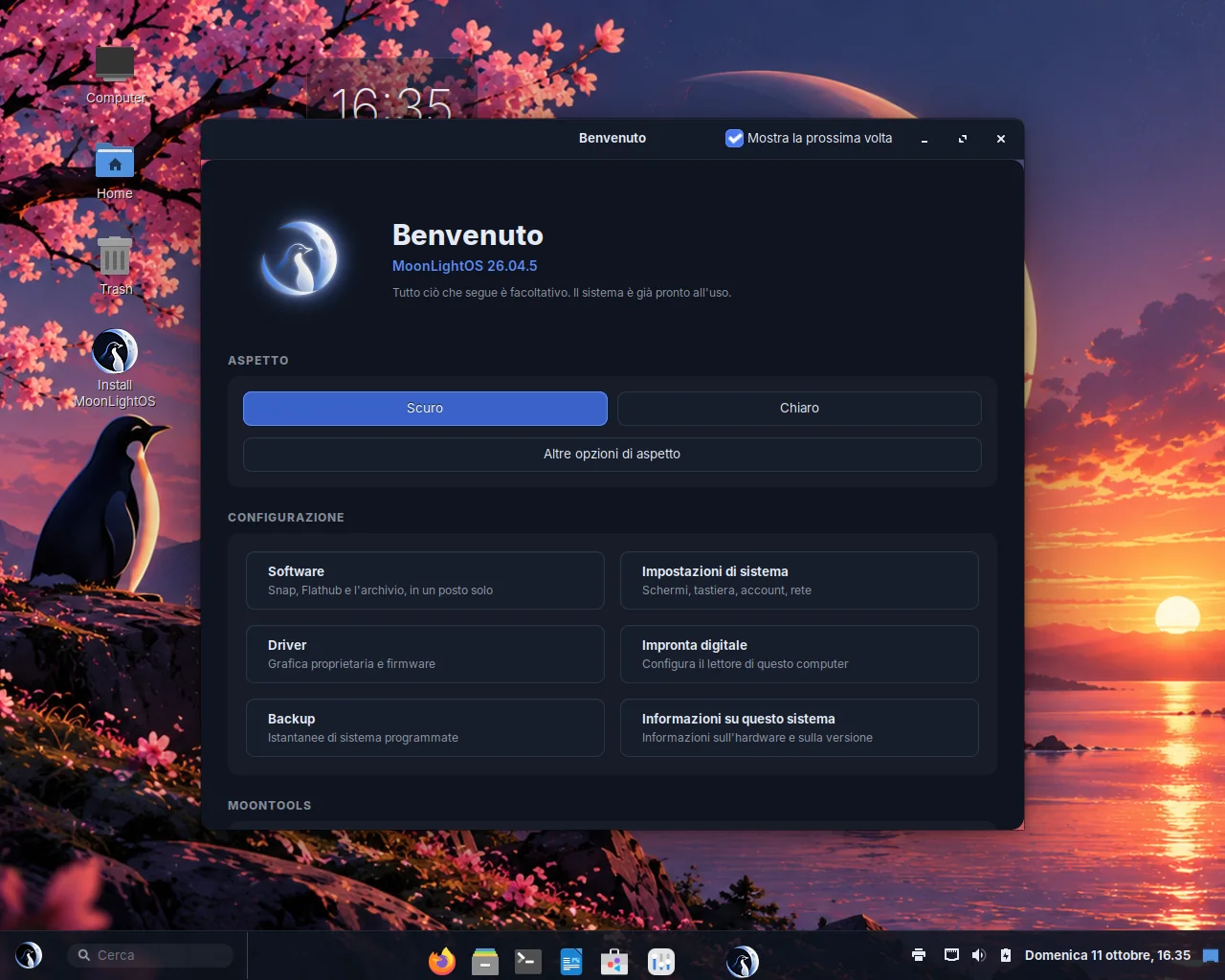
Shown once after the first login. It lets you choose an appearance, open the store, the settings, the drivers page, the fingerprint tool, backups or About, and add the developer pack your computer is for: virtual machines, PHP with databases, or LaTeX. A pack that is already installed is greyed out rather than hidden.

Setup

The first-run wizard

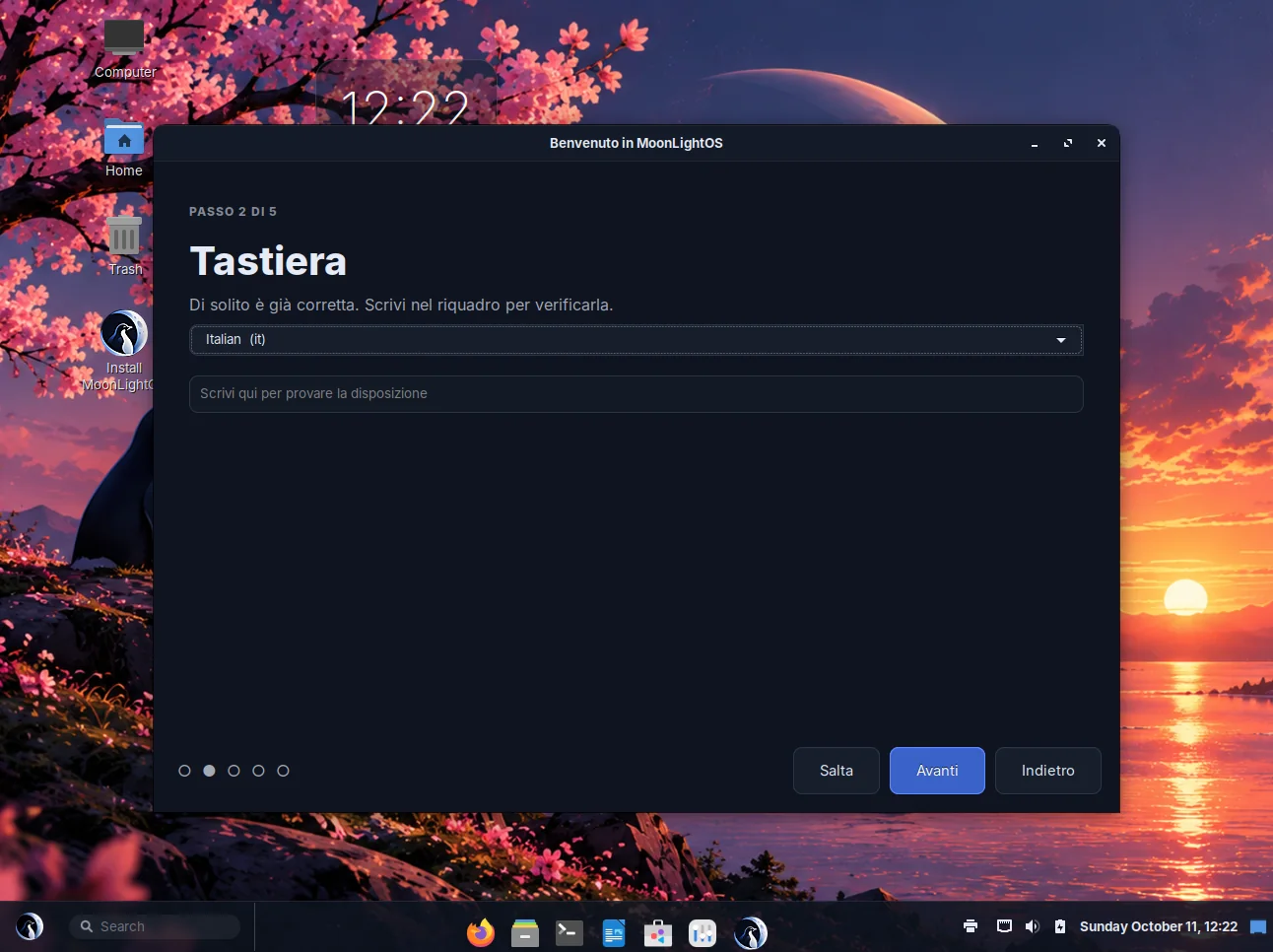
The first thing you see on the live medium, before the desktop: choose a language, choose a keyboard layout, connect to a network, and then either explore or install. Each step takes a few seconds and can be skipped. Everything it sets is a real system setting, so the installer uses the same choices and nobody answers the same question twice.

About MoonLightOS

Release and hardware information

The release name and a description of the computer: processor, memory, graphics, disks and whether Secure Boot is enabled, with the logo next to it. It replaces Cinnamon's System Info page inside System Settings and also opens as a separate window. A Copy report button copies the whole page to the clipboard as text, ready for a bug report.

Fingerprint

Reader detection and enrolment

Detects the reader, says clearly whether the sensor in your computer can be used, enables the PAM integration and guides you through enrolment. There are three kinds of sensor: those supported directly by libfprint, match-on-chip sensors where no image ever leaves the sensor, and Touch OEM Driver sensors (Goodix, some Synaptics, Broadcom) whose matching code is a vendor binary that cannot be redistributed. The tool says so clearly and offers to download it if the laptop vendor provides one.

It also makes clear what a fingerprint cannot do: unlock an encrypted disk at startup.

Face Unlock

Sign in by looking at the camera

A convenience that works alongside the password, never instead of it. It applies only to the login screen, the lock screen, console login, sudo and polkit; an SSH session never uses the camera. It requires a little movement so that a photograph is not enough, gives up after eight seconds and falls back to the password, and your face data can be removed with one button.

Disabled by default. The camera is never used until you turn it on.

Application check

Verifies that every installed application starts

A menu entry can point to a program that is not installed, use an icon that does not exist, or start something that closes immediately. This tool checks all three for every entry in the menu and reports what is broken.

System self-test

What the desktop is actually doing

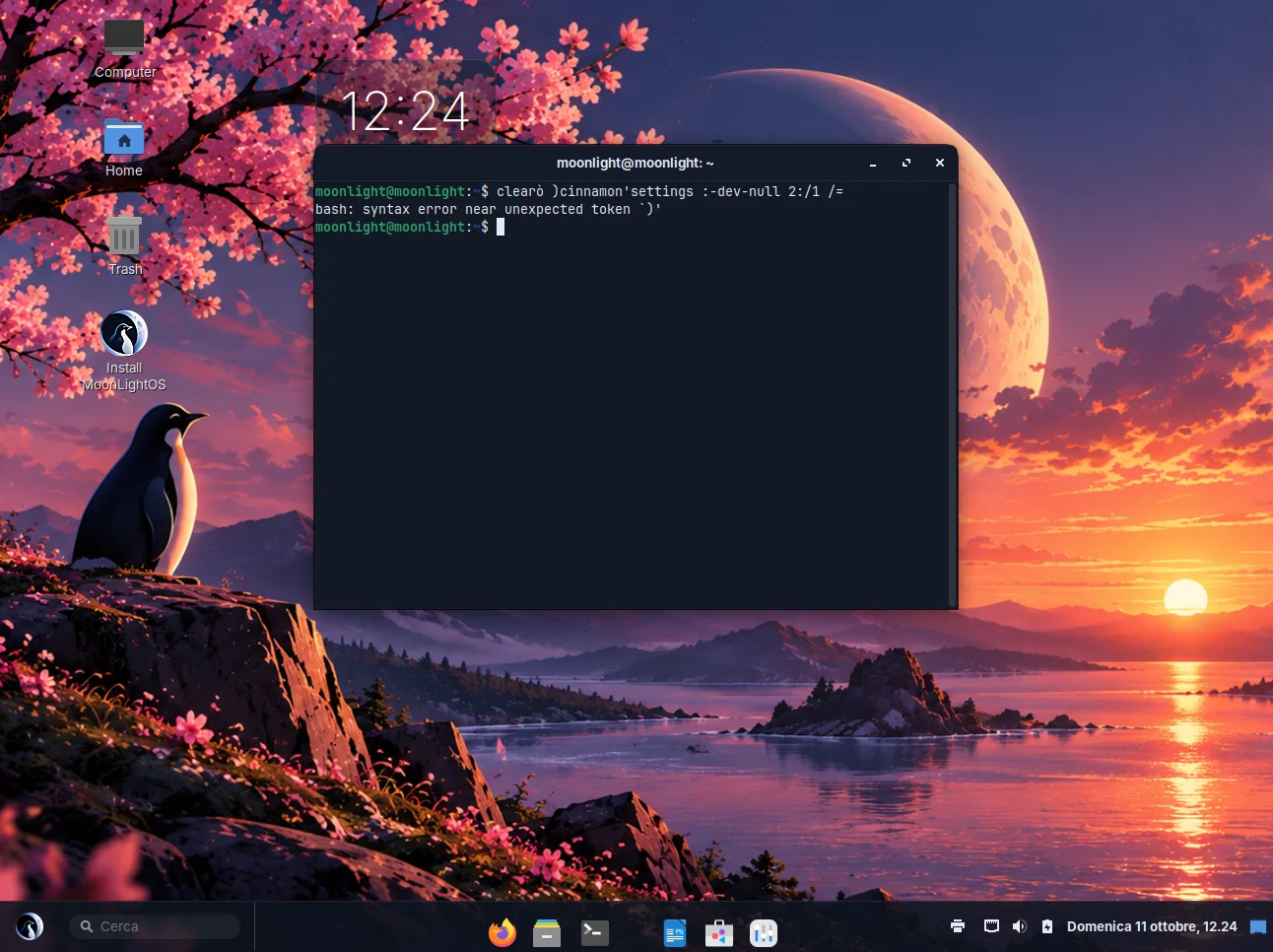
Screenshots show symptoms; this tool shows the state: the theme settings in use, whether the shell stylesheet loaded correctly, which graphics driver is active and which services failed. In the live session it also writes the report to the serial port one minute after login, so a start in a virtual machine leaves a diagnostic behind without any typing.

Pages added to System Settings

Cinnamon's System Settings, with the pages that were missing: your account, security, and the desktop and the dock, each in one place.

  • About

    The release and the computer's hardware, where people expect to find them.

  • Applications

    What is installed, which of the three package formats each application came from, whether anything is installed twice, and a button to remove it.

  • Desktop & Dock

    Appearance, the accent colour, the dock's position, magnification, automatic hiding and minimise animation, hot corners and gestures, widgets and night light.

  • Security

    A checklist of what does and does not protect this computer: encryption, firewall, Secure Boot, boot menu password, automatic login, remote login, screen lock and USB protection. Each line is either green or has a button that fixes it. Below it, the lockout rules and the emergency password.

  • Bluetooth

    Adapters and devices inside the settings window instead of a separate one, with a clear message when the computer has no Bluetooth hardware.

  • Your account

    Who you are, what you are allowed to do, and every way of proving it: password, fingerprint, face unlock and the emergency password, on one page.

Screenshot of MoonLightOS
Screenshot taken from a real start of the installed image, not a mock-up.

On the desktop and in the panel

Desktop widgets

  • Clock

    A large, simple time and date.

  • System

    Processor, memory and disk usage as three bars.

  • Calendar

    The current month, with today highlighted.

  • Note

    A sticky note, saved as plain text as you type.

In the panel and the menu

  • Search

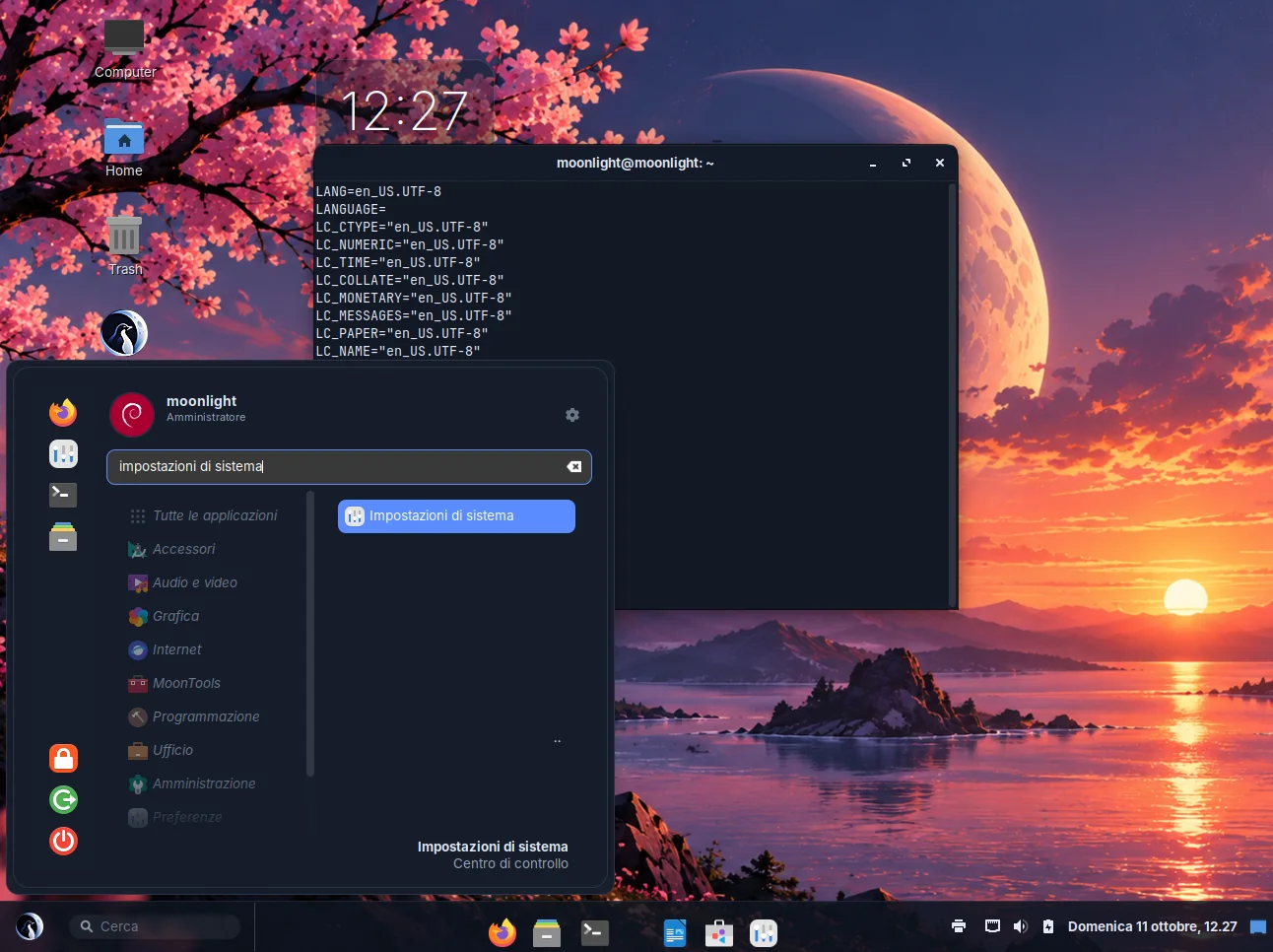
    A search box in the panel that finds applications, settings, files and web results.

  • Sound

    Volume, output device, the per-application mixer and the equaliser from the panel.

  • Dock menu

    Adds Show all windows, Hide, Open at login and Quit to a dock icon's menu, and enlarges the icon under the pointer.

  • Menu header

    Your picture, your name and whether you can administer this computer, at the top of the menu.

  • File search

    Finds documents, pictures and folders by name from the menu's search box; DuckDuckGo provides the web results.

Screenshot of MoonLightOS

Command-line tools

Kept in English on purpose, so that their output can be pasted into a bug report and understood.

CommandWhat it does
moonlight-theme light | dark | toggle | auto | statusSwitches between the light and dark theme; with --daemon it follows the schedule.
moonlight-shot --screen | --region | --window | --rec-screenTakes a screenshot or starts a recording from a script or a key.
moonlight-notes --new "text"Saves a note and exits.
moonlight-wine --setup | --run FILEPrepares Wine, or runs an .exe file with it.
moonlight-appcheck [--launch] [--quiet]Checks every menu entry; --launch also starts each application.
moonlight-selftest [--serial]Prints what the desktop is doing, optionally to the serial port.
moonlight-desktop-trustMarks launchers on the desktop as trusted when their program is installed in a system directory.
moonlight-gfx-tuneTurns animations off at login when the graphics renderer is software-based.